
- ScoreLens
- Sheet music to MIDI
Sheet music to MIDI, from a photo or a PDF
Photograph a printed page or open a PDF. ScoreLens reads the notes, you check them against your page, and you export a MIDI or MusicXML file from your phone. It is best on single-line parts and clean PDFs, and less sure on dense piano pages.


Three steps
No account. Only the page you photograph goes to our server to be read, and it is deleted once it is read.
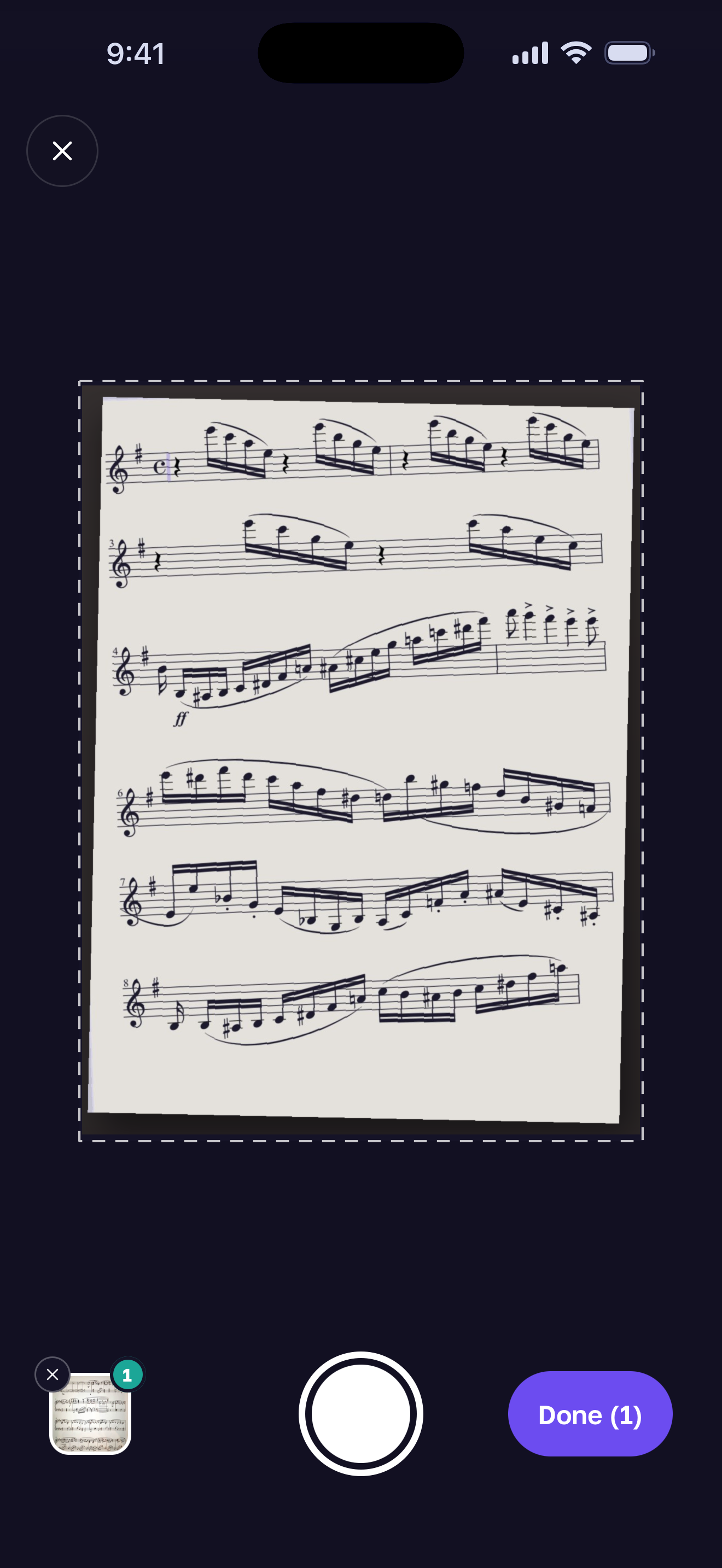
Photograph the page or open the PDF
Take a photo of a printed page, or open a PDF from Files or share it to ScoreLens and pick the pages. A screenshot works too.
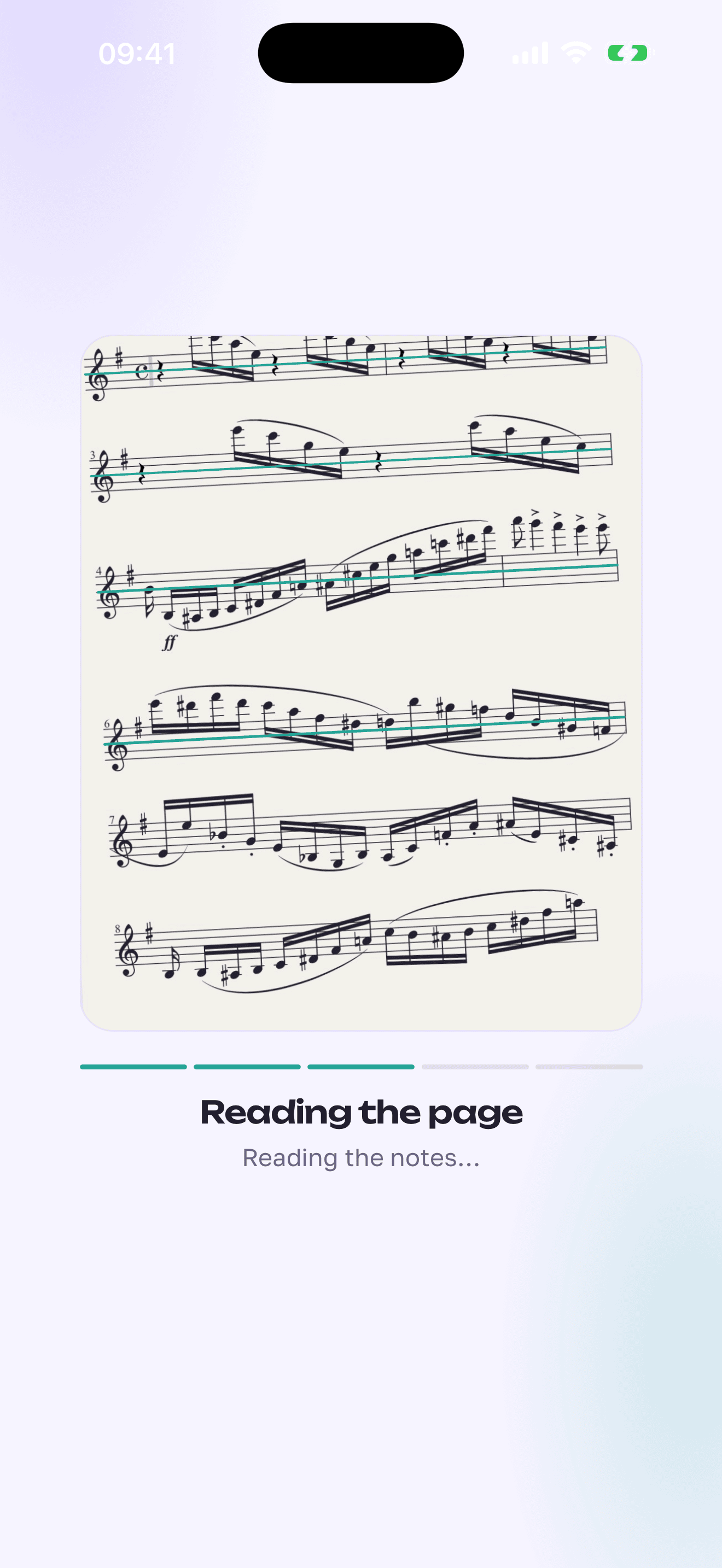
Check what ScoreLens read
The page opens as notation next to your photo. A small dot marks any bar whose beats don't add up, so you know where to look.
Export MIDI or MusicXML
Open Share & export, then More formats, and pick MIDI or MusicXML. The file goes to the share sheet: save it, or send it to your DAW or notation app.
What reads well, and what does not
From our own test of 40 photographed pages and 30 rendered PDF pages. Percentages are notes read right. These are our numbers on our set, not a promise for your page.
- Single-line parts, 98.3 %One melody on one staff: violin, flute, clarinet, sax, brass
- Voice with piano, 96.7 %Songs and hymns with an accompaniment
- Clean PDFs, 97.7 %Rendered or exported pages, not a skewed scan
- Band pages, 88.4 %Several staves on a page
- Piano photos, 80.6 %Dense two-hand pages are where it slips most
What you get in the file
MIDI is the page as you hear it in the app: repeats played out, tempo changes kept, at the tempo on screen, and in the key you chose. Open it in a DAW, or use it as a backing track.
MusicXML is the notation, in the key on screen. Open it in MuseScore, Dorico or Flat and fix the bars the check dot pointed at. A piece of several pages can go out as one file.
MIDI and MusicXML export is part of Pro; scanning, playback and a printable PDF are free. See what is free and what is Pro.
It does not replace an editor. If you need every bar perfect on a dense score, expect to correct some of it.
Questions
How do I convert sheet music to MIDI?
Photograph a printed page, or open a PDF, in ScoreLens. It reads the notes and shows them as notation. Check them against your page, then choose Share & export, More formats, MIDI. You get a .mid file to open in a DAW or a notation app.
Can I turn a PDF of sheet music into MIDI?
Yes. Open the PDF in ScoreLens from Files, or share it to the app from another one, and pick the pages. On clean, printed PDFs it is at its best: in our test on 30 rendered pages it read 97.7 % of the notes right. A scanned or photographed PDF is read like a photo.
Can I turn a photo of sheet music into MIDI?
Yes, and it is the same path. A photo depends on light and a flat page, so it is less exact than a PDF. On single-line parts, one melody on one staff, 98.3 % of notes were right in our test; voice with piano reached 96.7 %. Dense piano photos are the weak spot: 80.6 %.
Is the MIDI free?
No. Scanning, playback, tempo and key changes, and a printable PDF are free. Exporting MIDI, MusicXML and practice audio is part of Pro, which has a free trial on the yearly plan. The paywall opens when you tap one of them, and the export goes ahead once you have Pro.
What does the MIDI contain?
The page as you hear it in the app: repeats are played out, tempo changes are kept, and the tempo is the one set on screen. If you moved the page into another key, the MIDI is in that key. It carries notes and rhythm, not a recording of a performance.
Can I get MusicXML to edit in MuseScore, Dorico or Flat?
Yes. MusicXML is the notation itself, shown in the key on your screen, so you can open and correct it in MuseScore, Dorico or Flat. Expect to correct some bars first: see the accuracy notes above.
How accurate is it?
On our own 40-photo test set, 88.8 % of notes were right overall: 98.3 % on single-line parts, 96.7 % on voice with piano, 88.4 % on multi-staff band pages and 80.6 % on piano. No scanner is perfect. ScoreLens grades each read and flags a page that needs a look, and a MIDI made from a wrong bar has the wrong note.
What can't it read?
Handwritten manuscript, tablature and two voices on one staff. Multi-bar rests, cue notes, tempo marks and some repeats are weak spots in every scanner we know of, so check them. Reading a page needs an internet connection.
Does it work on Android?
Yes. ScoreLens is on Google Play and the App Store, and the export works the same on both.
Try it on your own page.
Scan and listen first, free. ScoreLens is on the App Store and Google Play.